
WHAT YOU'LL ACCOMPLISH
Register for ATP360, deploy it to your Azure subscription, connect your AI engines, set up a worker VM, and run your first autonomous validation — typically in 30 to 45 minutes once your workspace is provisioned.
How this works
The ATP360 Private Preview deployment is a three-part process: you register, we provision your workspace, then you deploy ATP360 into your Azure subscription.
This guide walks you through each step in order. Reach out to your Rimo3 CSE anytime if you get stuck.
|
1 |
You register via the ATP360 setup form — takes about 2 minutes. |
|
2 |
We provision your workspace and enable the ATP360 deployment for your Azure subscription — within 24 hours. |
|
3 |
You deploy ATP360 into your Azure subscription, connect AI engines, and run your first validation — 30 to 45 minutes. |
Step 1
Register for ATP360
Complete the ATP360 setup form to give us the information we need to provision your workspace.
What you'll need before you start
- Your business email and company name
- If you're an existing customer: your Workspace Admin Email
- If you're new: your desired workspace name, company size, and country
Step 2
This step happens behind the scenes — you don't need to do anything yet.
What we're doing
Once you submit the form, you'll receive a confirmation email. Within 24 hours, our team enables your workspace and enables ATP360 for your Azure subscription. You'll get a welcome email when everything is ready.
What you'll receive
A welcome email containing your workspace details, your ATP360 deployment link, and a link to this deployment guide. That email is your signal to start Step 3.
You will get 30 days access from getting this welcome email, which can be extended on request
Step 3
Deploy ATP360 into Azure
This typically takes 30 to 45 minutes from start to first validation.
Before you begin
Make sure you have:
- Access to an Azure subscription to deploy the solution into
- Permission to create Resource Groups in that subscription
- An OpenAI API key (required)
- Optionally, API keys for at least one additional AI provider (Claude or Gemini recommended — connecting all three will provide the best experience as different AI engines are better for specific jobs)
- Access to deploy a Windows VM in Azure (or a physical Windows device you can use)
Step 3.1 — Open the deployment link
Click the ATP360 Private Preview deployment link. This will open the Azure portal directly, ready to deploy ATP360 into your Azure subscription. Your username is your user id (email you used to sign up). Note that if you start on this step, you will not be licensed to used the solution so wont be able to login to any resources you deploy.
Step 3.2 — Configure the deployment
- Login to the Azure Portal.
- Select an existing Resource Group or create a new one within that subscription.
- Give the managed application a name.
- Optionally change the managed resource group name (Azure creates and manages this resource group for you).
- Click Review and Create, then Create.
Grab a coffee
Deployment takes 15 to 30 minutes. If you navigate to your Resource Group in the Azure portal, you can watch provisioning progress in real time.
Step 3.3 — Launch ATP360
Once deployment completes:
- In the Azure portal, navigate to the Resource Group you used during deployment.
- Find the Container App named atp360frontend.
- Click the Application URL to launch the ATP360 user interface.
- Save this URL — you'll come back to it every time you use ATP360.
Step 3.4 — Connect your AI engines
ATP360 uses AI engines to reason about application behaviour during validation. To get the best results, connect multiple engines.
- Log in to ATP360.
- Go to Settings.
- Connect your AI engines using API keys. We require OpenAI and also recommend both Claude, and Gemini for the most accurate validation results.
- Select the default AI engine + model to use for each layer of ATP360 - we recommend
- Parser - for parsing text OpenAI GPT 5.4 and for parsing video Gemini 3 Pro
- Orchestrator - Open AI GPT 5.4
- Execution - Claude Opus 4.5 (or Sonnet 4.5 for simpler tests - it is significantly cheaper)
Why multiple AI engines
Different AI engines have different strengths. Connecting more than one lets ATP360 cross-check reasoning and produce higher-confidence validation results.
Step 3.5 — Deploy a VM to use for a CUA Worker
- Deploy a Windows VM in Azure (or use an existing Windows device) for our CUA Worker to be installed on. This should be a non production VM and shouldn't be used for other workloads outside from ATP360
- If provisioning an Azure VM, we recommend a B4ms class or higher in spec for a good experience with ATP360
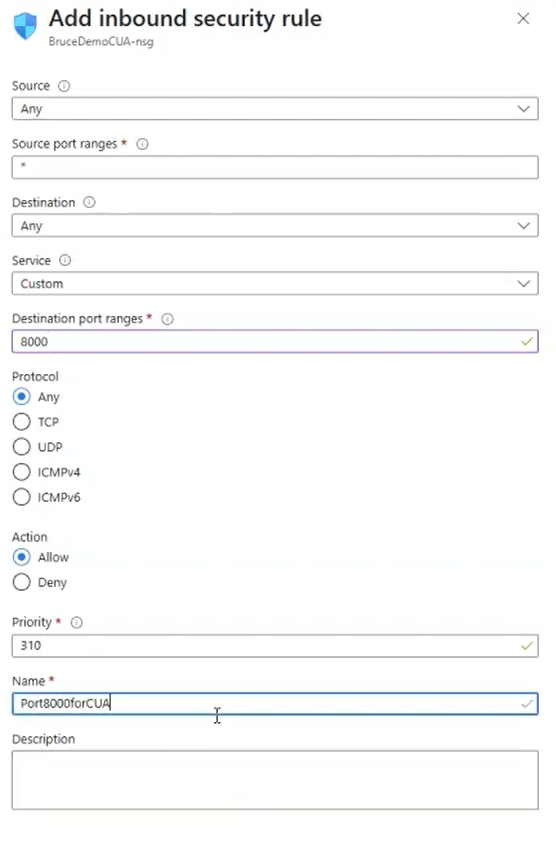
- On the VM, allow inbound traffic on port 8000 so the ATP360 orchestrator can reach the worker. See the below for details
Step 3.6 — Set up a CUA Worker
The CUA Worker is a small Windows agent that ATP360 uses to actually run validation tests. You install it on a Windows VM or physical device that has access to the applications you want to validate.
- In ATP360, go to Settings and click Download for Windows to get the CUA Worker.
- Extract the zip file and run Invoke-AppDeployToolkit.ps1 to begin setup (The PowerShell script, not the executable).
- Provide a local account on the VM (username and password) which will be configured for auto login
- When prompted, select the external IP address displayed.
- The CUA Worker will automatically appear in the ATP360 orchestrator UI once it connects.
Step 3.7 — Run your first validation
You're ready to test. From the ATP360 UI:
- Provide a document, video or prompt to generate test steps from
- Select the target CUA Worker.
- Click Extract test steps and check the steps along with pass/fail criteria match your expectations
- Kick off the validation.
- Watch the autonomous validation run, then review the pass/fail results.
You've made it!
You've completed your first autonomous validation. Now bring your wins, questions, and discoveries to Office Hours every Tuesday at 11am ET — and share what you find on the ATP360 feedback page.
Need help along the way?
Three ways to get support during the Private Preview:
Your CSE
Your dedicated Customer Solutions Engineer is available throughout the Private Preview for questions, troubleshooting, or just to think through how you're using ATP360. Reach out directly anytime.
Office Hours
Every Friday at 11am ET, we run a 30-minute drop-in with the ATP360 product team. We start with a quick tip or insider update, then open up for Q&A and conversation. --> Register Here (register once and be enrolled in series)
The Knowledge Base
Our growing knowledge base has step-by-step articles, troubleshooting guides, and best practices. This article is on our knowledge base so you are in the right place
Share what you find
Your feedback shapes the ATP360 roadmap. Submit your first run experience, suggest features, or report bugs at rimo3.com/atp360-feedback
Fill out our First Run Feedback form! --> Start Here