In this article
-
Using an Intune Deployment Template when Exporting from Change360
- Monitor and Manage Intune Deployments
What are Intune Deployment Templates?
Intune deployment templates are a predefined set of Intune assignments and deployments settings used to standardize how an application is deployed in Microsoft Intune. There are 3 steps to using Intune deployment templates:
- Define a new Intune deployment template - templates are created and managed in Change360. Creating a template doesn't trigger any activity in Intune.
- Select an Intune deployment template - a template can be used when onboarding or subscribing an application in Patch360 and choosing the Export to Intune pipeline, or when exporting an application to Intune from Change360.
- A deployment is automatically created and executed- once the application has been successfully exported to Intune, a new deployment is created and triggered according to the configured mode: Manual, Immediate or Scheduled.
Required Permissions
When creating a new Intune deployment template and selecting an Intune instance, Change360 checks whether the required Microsoft Graph API permissions are already granted.
If not, the user is prompted to grant consent through the registration of a new Enterprise Application in Microsoft Entra ID.
The Enterprise Application is then configured with the required permissions needed to manage Intune deployments and assignments:
- Group.Read.All - to allow user to select to which security groups applications will be assigned
- DeviceManagementApps.ReadWrite.All - to retrieve applications with their assignments and to update those assignments.
- DeviceManagementConfiguration.Read.All - to retrieve filters
Defining a new Intune Deployment Template
Intune deployment templates are defined and managed in Change360. When creating a new template you can choose whether or not to make the template Evergreen.
If you make a template Evergreen it can be used when subscribing to applications in Patch360. Each time a new version of a subscribed application is onboarded, tested and exported to Intune the Evergreen template will:
- Remove the assignment for the specified group(s) from the previous version of the application
- Assign the specified group(s) to the new version of the application
- Configure the supersedence to allow the new version to perform the upgrade from the previous version. The upgrade will be set as defined by the application publisher: in place or replacement.
- Note: In place upgrade will install the new version on top of the old one.
Replacement upgrade will perform an uninstall of the previous version, prior to installing the new version.
- Note: In place upgrade will install the new version on top of the old one.
- Apply the assignments and the settings defined in the template, including auto-update if configured for available devices.
You can control how many versions of a subscribed app to keep in Intune and your Change360 workspace when subscribing to an application in Patch360.
If a template is not configured as Evergreen, it can be used during application onboarding in Patch360 or when exporting applications to Intune from Change360, but it cannot be used for application subscriptions in Patch360.
If a template is not configured as Evergreen:
- Supersedence will not be configured when the assignment is created
- Auto-update will not be configurable for Available assignments
To create a New Intune Deployment Template, do the following:
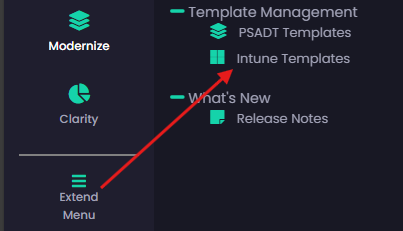
- In Change360 click on Extend Menu and select Intune Templates from the new Template Management section
- On the Intune Deployment Templates screen click on + New template
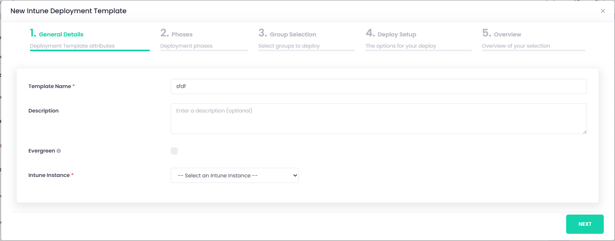
- On the General Details tab enter the following details, then click next:
- Enter a unique name for the template
- Optionally enter a description for the template
- Optionally select the Evergreen checkbox if you want to use the template when subscribing to applications in Patch360
- Select the target Intune Instance for the template
Once selected Change360 will check for required permissions, if all required permissions have been granted the following will be displayed:

Otherwise, you will be prompted to grant permissions via an Enterprise App Registration
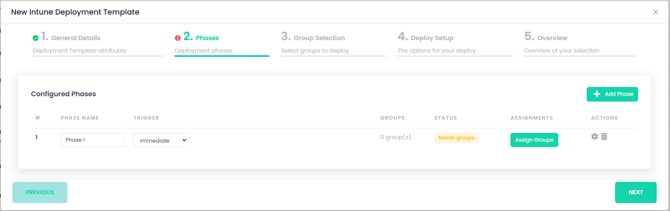
- On the Phases tab you can add up to 5 phases, phase names can be customised.
- For each Phase you add you will need to:
- Configure a trigger mechanism: Manual, Immediate and Scheduled
- Add one or more groups
- Configure the assignment for each group on the Deploy setup tab
- Select a trigger from the dropdown box:
- Manual phases require a user to manually trigger the phase before deployment continues. Once triggered, the phase starts immediately.
- Immediate phases are triggered as soon as the previous phase finishes, or, if it is the first phase in the deployment, as soon as the deployment starts.
- Scheduled phases run at the time you specify, after the chosen number of days has passed since the previous phase finished, or since the deployment started for phase one.
- To add one or more groups, click on Assign groups or click on Next
- On the Group Selection tab search for and select one or more groups to be assigned as part of the selected phase.
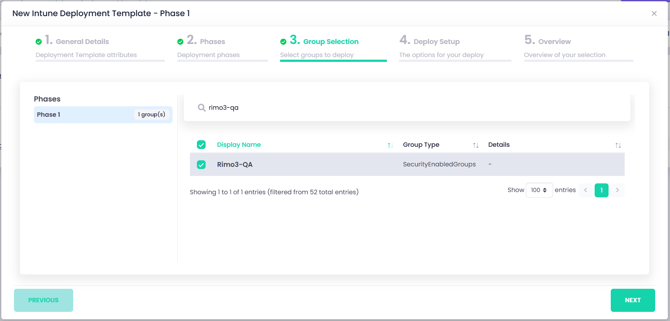
If you have created multiple phases, you can select each phase from the left-hand pane to review and configure its assigned groups
- Click Next
- On the Deploy Setup tab you can configure the assignment details for all groups in the selected phase or each group individually.
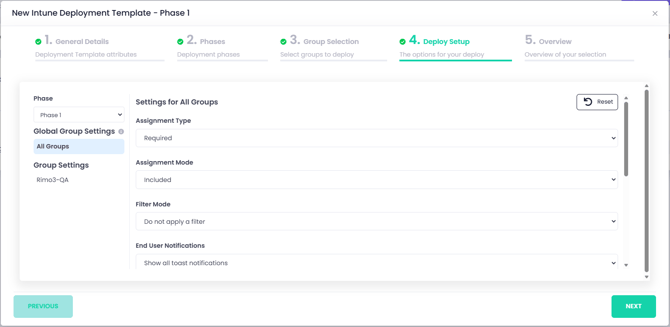
PRO TIP: Start by configuring the settings that apply to all groups, then refine and customize the configuration for each group individually.
For evergreen templates, when the assignment type is "Available for enrolled devices", the "Enable auto-update" checkbox is available. When enabled Intune will automatically update the application on the devices where an older version was previously installed.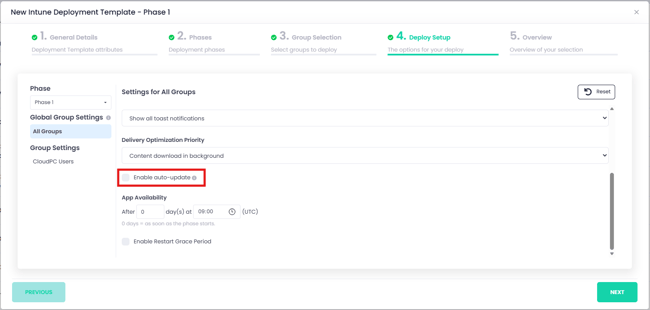
- If you have added multiple phases, use the Phases dropdown in the left-hand pane to select each phase and configure its assigned groups.
- Click Next
- On the Overview tab you can review the configured phases and make changes, if necessary, before proceeding. To add additional phases, click on the Phases tab, add the additional phases, and repeat the group assignment and configuration steps above.
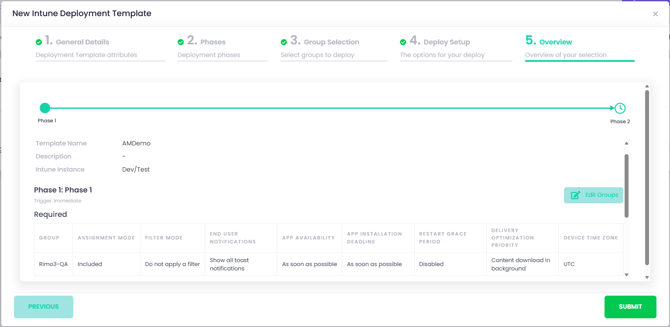
You will not be able to save an Intune deployment template if if one or more phases do not have a group assigned.
- Click Submit to create the Intune Deployment Template.
The Intune Deployment Template will now be available to use when the Intune instance specified in the template is selected as part of the Export to Intune pipeline in Patch360 or when exporting to Intune from Change360.
Using an Intune Deployment Template in Patch360
When Onboarding or Subscribing to an application in Patch360 you can choose to use an Intune Deployment Template when:
- The selected Pipeline Action is Export to Intune
- The selected Intune Tenant has at least one Intune Deployment Template associated with it
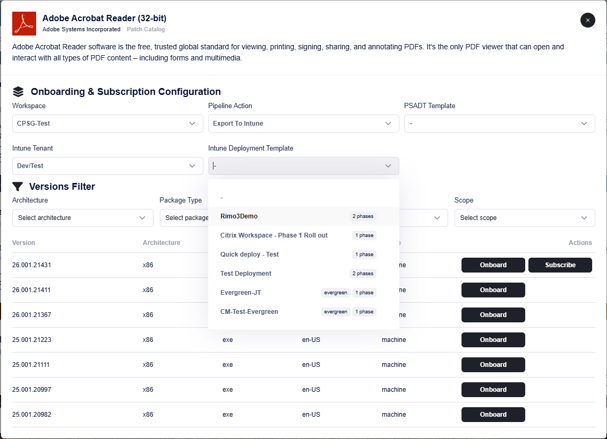
- Click on Subscribe.
- If you want older versions of the subscribed application to be automatically removed from Intune and your Change360 workspace then select the number of versions to retain. If the "Previous versions retained" setting is unchecked, all versions will be retained.
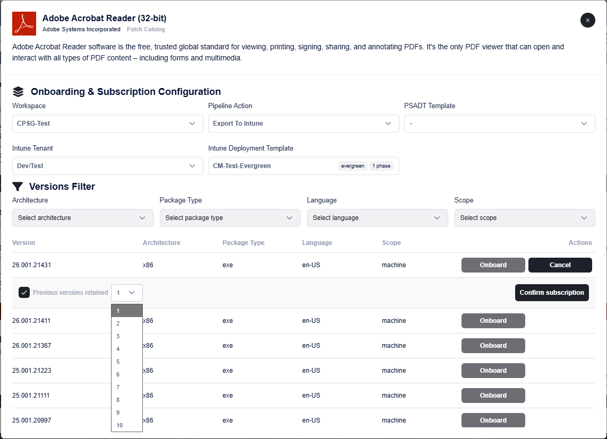
- Click on Confirm subscription
When you select an Intune Deployment Template, you can subscribe to a package only if you choose an Evergreen template. Non-evergreen templates support the Onboard action only.
Using an Intune Deployment Template when Exporting from Change360
When exporting apps to Intune from Change360, you can choose to use an Intune Deployment Template when the selected Intune Instance has at least one Intune Deployment Template associated with it.
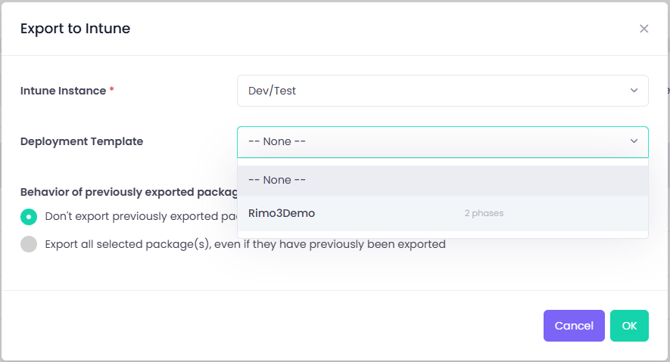
When exporting an application to Intune from Change360 you will be able to select only the non-evergreen Intune Deployment Templates associated with the selected Intune Instance.
Monitor and manage Intune Deployments
Use the Intune Deployments Dashboard to view all pending, in-progress, and completed deployments.
From the Actions column, you can click on the Intune icon to navigate to the application in Intune.
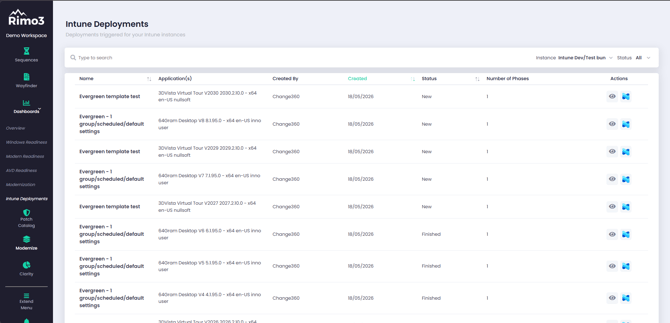
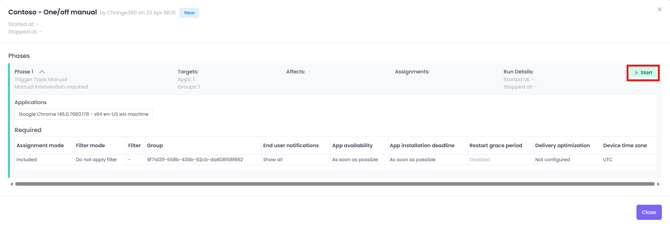
For deployments configured with a manual trigger, open the deployment details and start the deployment from there.