
What is Boost360 for Intune?
Boost360 for Intune (Boost360) is an extension for Chrome and Edge that extends Intune execution with bulk actions, phased deployments, and repeatable workflows.
Key features:
- Create deployments for multiple apps and/or multiple groups with fewer clicks compared to configuring assignments individually.
- Create phased deployments that automatically trigger assignments at the desired time.
- Clean up old assignments in bulk.
Creating a new deployment with Boost360
- Browse to https://intune.microsoft.com
- Click on Apps → All Apps
- Click on the Rimo3 tag to open the Boost360 flyout
You may be prompted to login at this point
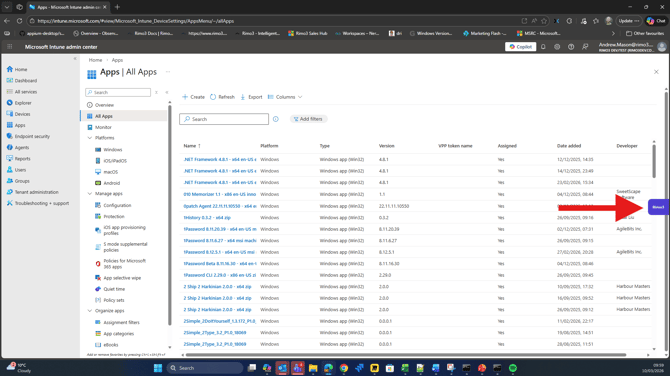
If there is no Rimo3 tag you can install it from the Edge Add-ons store or the Chrome web store.
- On the Boost360 homepage click on Application List

You can expand the flyout so that you can see more detail:
- On the Application List page select 1 or more applications, then select either + New Deployment or + New Phased Deployment.
In this scenario a deployment is just a simple single-phase deployment. For the purpose of this article we will create a multi-phase deployment to illustrate the additional options available
- On the Phased Deployments screen click on + Create New Phase
When choosing to do a simple deployment you will be take straight to the configure groups step below
- On the Create New Phase screen
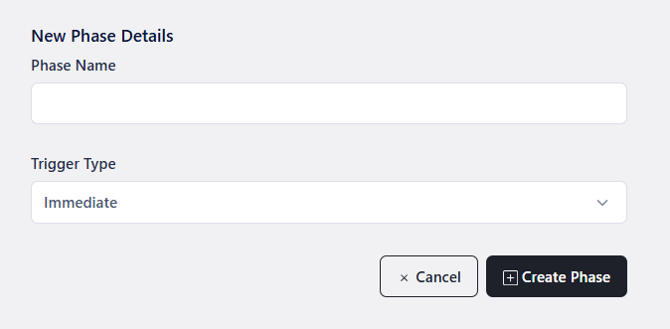
- Give the Phase a unique name
- Select the trigger type:
- Immediate - the phase will run as soon as the phased deployment is created if it Phase 1, or as soon as the previous phase has run if it is a later phase.
- Scheduled - select the date and time at which the phase should be run
- Manual - wait for the phase to be manually triggered in the Boost360 extension.
- Select the date and time if trigger is set to Scheduled
- Click next and you will be taken to the Group Selection step for the phase.
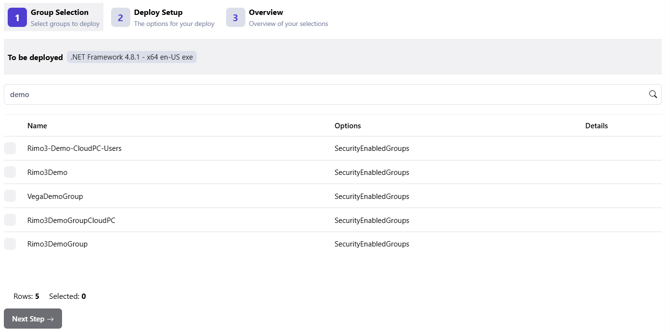
Select one or more groups to which the selected applications will be assigned, then click Next Step →
The list of groups is searchable
- On the Deploy Setup step you have the option to configure the setting for All Groups or each group individually. These settings represent how the assignment for each group will be configured for each of the selected apps.
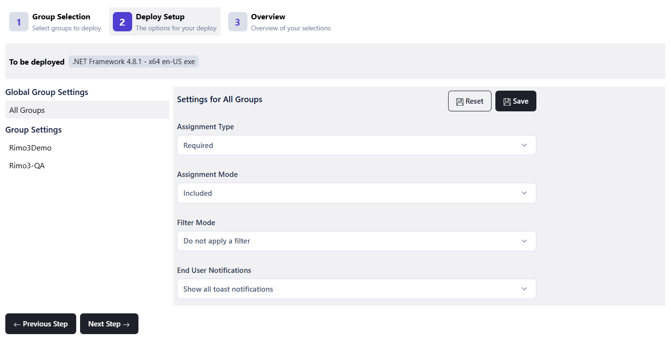
Start by configuring common setting for All Groups then click Save, the selected configuration will be applied to all groups, and you can then select groups individually and further customise them if necessary.
- Remember to Save any changes you make to all groups or individual groups, then click Next Step →
- On the Overview step you can review the configuration of each select group. If you need to make any changes, click on ← Previous Step to go back and make any changes, or click Save Phase
- On the Phased Deployments screen you can now Duplicate, Edit or Delete an existing phase or create a new phase from scratch repeating the above steps.

- Once you have added all the necessary phases click on + Deploy and Boost360 will Run the deployment.
When Boost360 runs a deployment, it means that it will trigger phase 1 as per the configuration, i.e. if phase one is set to immediate then Boost360 will add the assignments configured in that phase immediately. If Phase 2 is scheduled Boost360 will wait until the scheduled time before adding the assignments configured in phase 2.
- On the Phased Deployment screen you will again see a summary of the configured phases and the status of each.
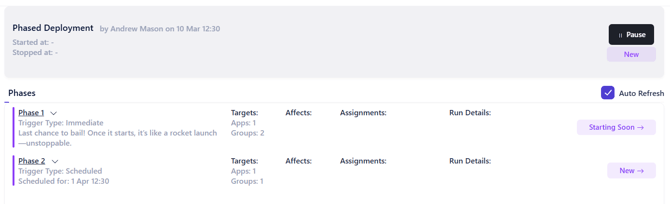
You'll notice that Phase 1 will have an initial status of Starting Soon. Even if the trigger type for phase 1 is immediate there is a 30 second giving you the opportunity to Pause the deployment, if necessary, before the phase is executed.
- Once a phase has been executed Boost360 will move on to the next phase and either execute it immediately or at the schedule time, or wait for the phase to be manually triggered as appropriate. As you can see in the example below Phase 1 ran successfully and Boost is now waiting until the scheduled time to run Phase 2.
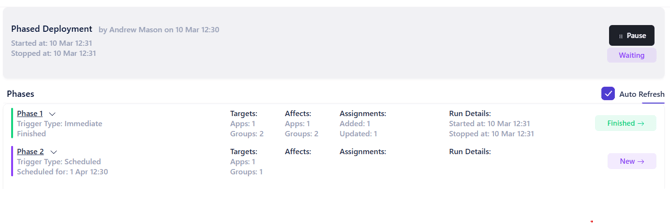
- At this point you can browse away from the deployment. At the scheduled time Boost360 will trigger the next phase, even if you are not logged into Intune or the Boost360 extension.