The Rimo3 Platform supports two types of PSADT templates, which are used when wrapping applications with the PowerShell App Deployment Toolkit (PSADT):
Template Types
Out-of-the-box templates
-
Provided by Rimo3
-
Equivalent to the standard templates available on the official PSADT GitHub repository
-
Ready to use without modification
Custom templates
-
Uploaded by customers
-
Created by customizing a PSADT template to meet internal standards or deployment requirements
Default Template Behavior
Any PSADT template can be set as the Default for wrapping.
The default template:
-
Is preselected in the UI when wrapping applications with PSADT
-
Is automatically used by the API when no template is explicitly specified
-
Cannot be deleted or deactivated
Importing Custom templates
Customized PSADT templates can be uploaded to your Rimo3 workspace and used to wrap packages.
- Once your PSADT template has been customized add it to a Zip file
The Zip file should only contain one PSADT template, if you have more than one PSADT templates zip them individually and repeat this process for each template.
Import Steps
-
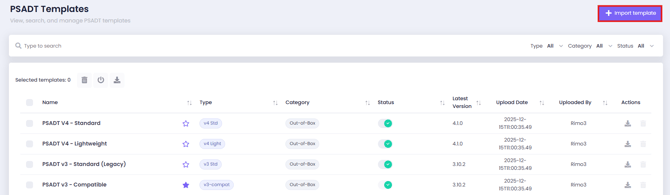
Navigate to PSADT Templates from the Extended Menu in your workspace
-
Click Import Template
-
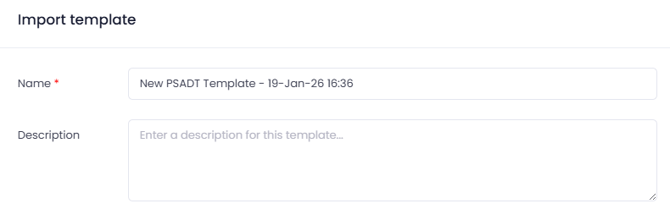
In the modal:
-
Enter a custom name or keep the default
New PSADT Template – DD-Month-YY HH:MM -
(Optional) Add a description
-
-
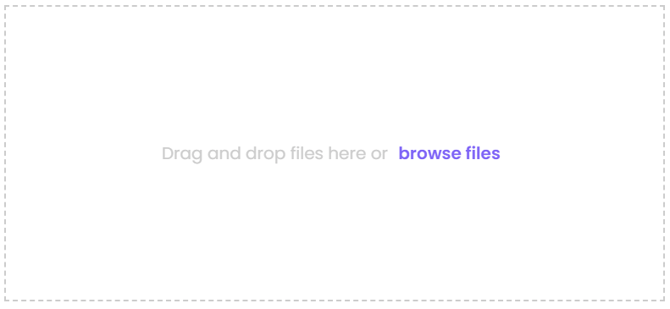
Browse to the ZIP file or drag and drop it to the space provided
-
Click Save
Once imported successfully, the template appears as the last entry in the template list.
Downloading templates
-
One or more PSADT templates can be downloaded to your local machine
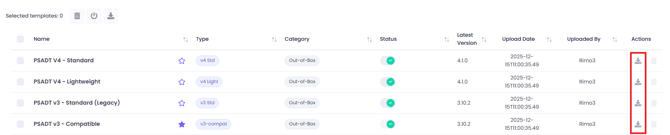
-
Bulk download is supported
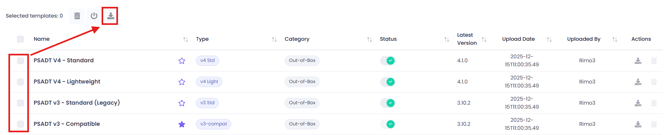
Deactivating and Activating templates
Templates can be activated or deactivated to simplify management.
-
Only active templates are available when wrapping packages
-
Deactivated templates:
-
Will not appear in the list of templates when wrapping a package with PSADT
-
Cannot be set as default

-
How to activate or deactivate
-
Use the Status toggle on an individual template
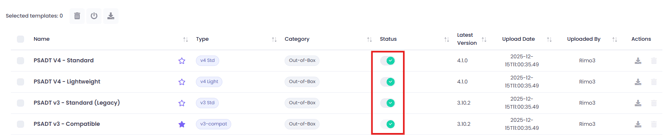
-
Or select multiple templates and use the Activate / Deactivate bulk action
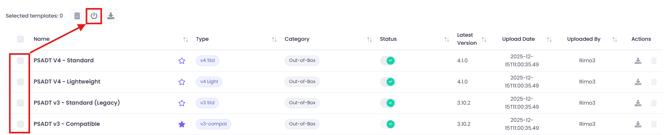
Deleting Templates
-
Custom templates can be deleted individually or in bulk

-
Default templates cannot be deleted

-
Out-of-the-box templates cannot be deleted, only deactivated

Using PSADT Templates
PSADT templates are used when wrapping applications in Rimo3.
Current usage
-
Available when manually wrapping applications from the Dashboard
Upcoming usage
-
Native applications from the Patch Catalog will be wrapped automatically using a PSADT template