
The Rimo3 SCCM Import Utility supports importing applications from your SCCM environment without needing to domain join your Change360 resources, configure additional AD users and permissions, or manage any related network configuration.
The SCCM Import Utility is also very useful when migrating from SCCM to Intune, as it copies the package source files to your Rimo3 storage account, making SCCM decommissioning easier by removing any dependency on the SCCM server for exporting to Intune or for ongoing application testing.
Requirements
The SCCM Import utility:
- Should be run from a device that has line-of-site to the target SCCM server
NOTE: The SCCM Import Utility should target an SCCM server configured with the SMS Provider role. This is typically the Primary Site server, but it can be any device running the SMS Provider service, including a CAS.
- Can use the credentials of any user who has access to SCCM
NOTE: The user signed in to the device running the SCCM Import Utility must have at least Read file share and NTFS permissions for all locations where package source files for imported applications are stored.
Downloading the SCCM Import Utility
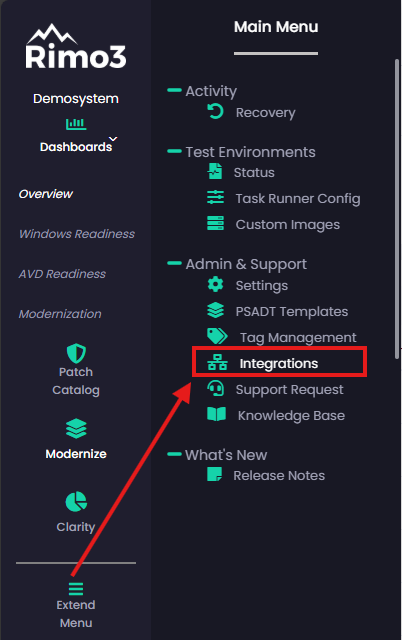
- In your Change360 workspace click on Extend Menu and select Integrations
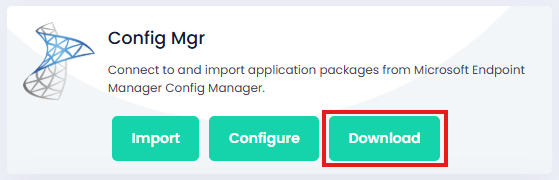
- On the Integrations page click on Download on the Config Mgr card
Importing applications with the SCCM Import Utility
- Double click on Rimo3.SccmUtility.exe
NOTE: the first time you launch the SCCM Import Utility it may take a little longer to launch while it configures its local database.
- When prompted, sign in with Entra ID credentials that have access to the Change360 workspace where you want to import applications.

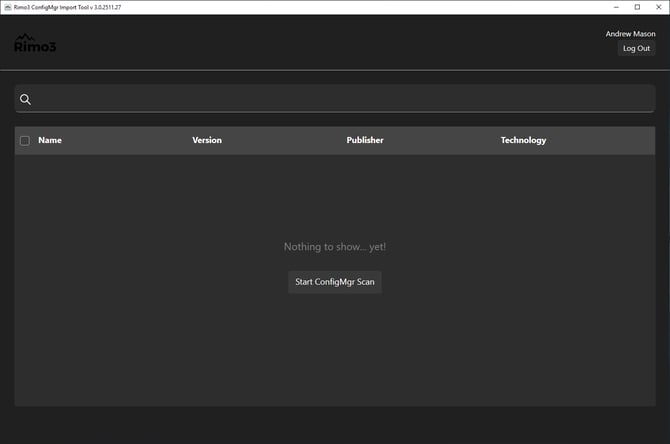
- Click on Start ConfigMgr Scan
- On the SCCM Connection Details screen enter the following:
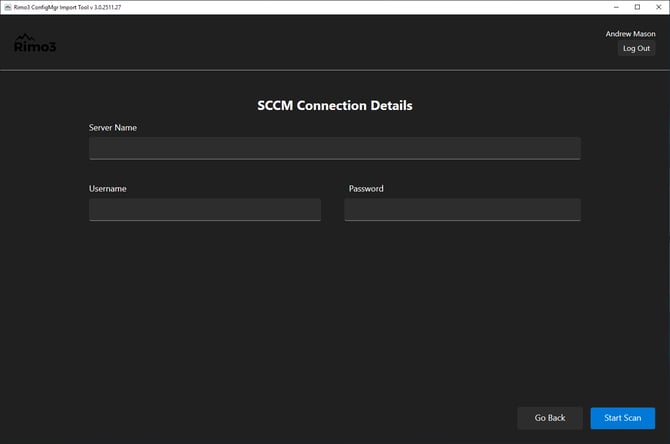
- Server Name - this is the name of the SCCM Server, or environment running the SMS Provider role. You can use the NetBIOS hostname, FQDN or IP address of the environment
- Username and Password - these credential will need to be able to see the applications that you want to import in the SCCM Console.
- Click on Start Scan
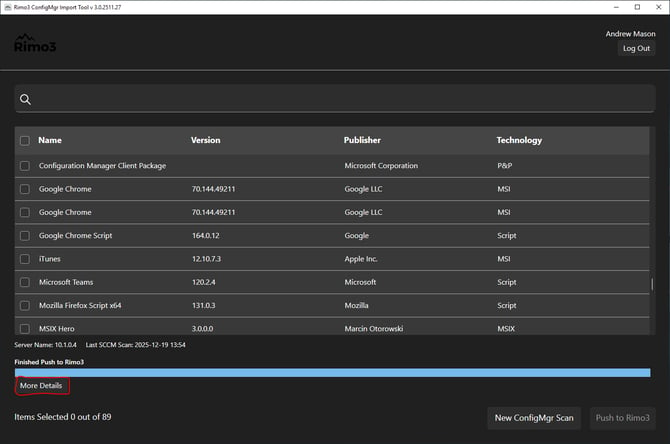
After the scan is complete you can click on More Details to review the detailed scan results.
- When the scan completes, select the applications you want to import by using the checkboxes next to each item, or select all applications by using the checkbox to the left of the Name column header.
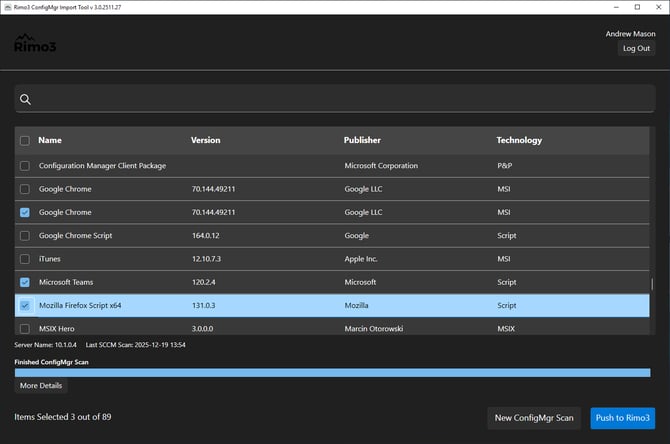
- Click on Push to Rimo3 to start the import process
- Select the target workspace, then choose how far through the automated pipeline you want the selected applications to be processed.
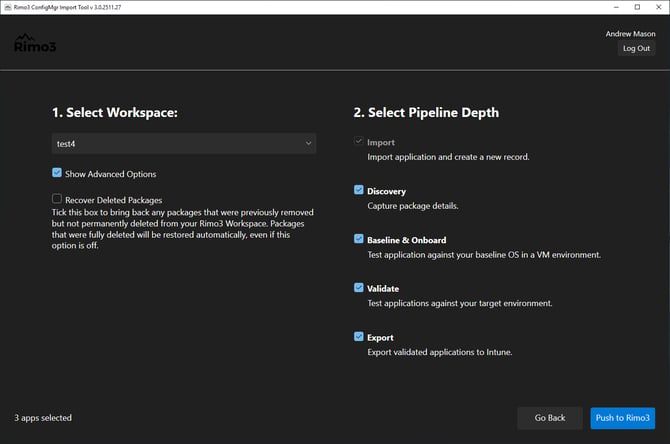
Remember, you can always continue processing imported applications through the automated pipeline later. For example, you might import all applications now, then run Discovery and Baseline & Onboarding on smaller batches afterward.
- Click on Push to Rimo3 to start the import process
- You can monitor the progress of the SCCM imports and the subsequent automated pipeline stages on the Overview Dashboard in your Change360 workspace.
Troubleshooting
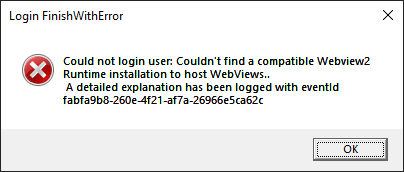
- Webview2 errors - The SCCM Import Utility uses WebView2, which is bundled with the utility. However, in some environments—such as older versions of Windows or Windows Server—you may need to manually install a compatible version of WebView2.
- Scan and Import logs - After a scan or import, click More Details to review information about the most recent operation, including scan and import failures, and any issues that might prevent scanned applications from being available for import.
Historical application, scan and export log files can be found under the location from where the SCCM utility is being run:- Main log (app launch, version check, login, reading previous scans): .\Logs\appYYYYMMDD.log
- Scan logs: .\ConfigMgrScans\ConfigMgr Scan_YYYYMMDD_HHMMSS.log
- Push logs: .\PushesToRimo3\Push to Rimo3_YYYYMMDD_HHMMSS.log
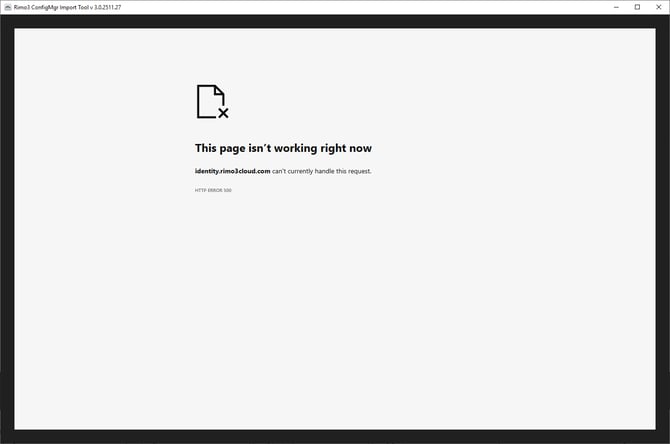
- Login issues - If you see the following error after authenticating with your Entra ID, wait a minute or two and then try again. If the error continues, contact your Rimo3 representative or email technicalsupport@rimo3.com.
- The local "database" is localed in:
"C:\Users\<Username>\AppData\Local\Rimo3.ConfigMgrImportTool\ConfigMgrScans\<Entra friendly user name>"- "SccmScanResult_latest.json" stores the most recent scan results
- The database size is approx. 150-200KB per app, 1000 apps would result in an approx. 200MB local database
- Delete SccmScanResult_latest.json to remove all previous scan result from the utility and start again
- "YYYYMMDDTHHMMSSMMM_SccmScanResult.json" stores previous scan results
- These can be deleted to free up space if necessary and you are confident they are not needed.
- "SccmScanResult_latest.json" stores the most recent scan results