
Rimo3 now enables you to view and edit PSADT scripts directly within the console for both PSADT packages you upload and those that are wrapped by the platform. This means you can inspect and adjust installation logic without leaving Rimo3, streamlining how you update parameters, pre- and post-install actions, and custom conditions. By keeping PSADT editing in a single, centralized workspace, you reduce context switching and accelerate how quickly you can prepare, update, and validate applications for export to Intune.
Viewing a PSADT Script
-
On the Package Details page for any PSADT package click on View Script

- This will open the script in read-only mode
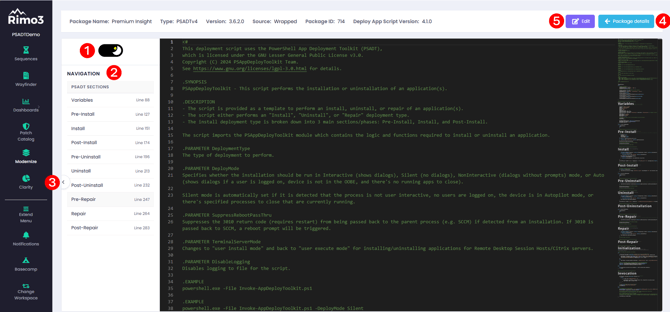
In view mode you have the following options:
-
Toggle light and dark mode to suit your preference.
-
Navigate the script easily by click on the script section titles in the navigation pane.
-
Collapse the Navigation pane to make the script window larger.
-
Return to the Package Details page.
-
Edit the script.
Editing a PSADT Script
-
To edit a PASADT Script click on the edit button

- On the edit page you have the same theme toggle and navigation options as on the view page.
The script editor currently provides basic autocomplete that suggests commands and parameters already present in your script. These suggestions are not equivalent to IntelliSense and do not validate whether a parameter is correct or supported for a given command.
Saving changes
As you edit a PSADT script, you can save your work incrementally. These saved changes are preserved even if you navigate away from the Edit page or if another user opens the script to view or modify it. However, it is important to understand that saved changes only affect the editable copy in Rimo3—they are not applied to the PSADT script inside the wrapped package until you explicitly commit them.
To save changes click on the Save button:

Discarding changes
To get rid of current edits and saved changes click the Discard button:

Discarding changes returns the editable copy of the script to the most recently committed version, removing any unsaved or previously saved edits that have not yet been committed.
Committing changes
To commit your changes and write them into the PSADT script within the wrapped package, click the Commit button:

After you commit, these changes become permanent and cannot be undone or discarded, so review your updates carefully before proceeding.
When you commit changes, the following happens:
-
The editable copy of the script is updated - this version becomes your new reference point, meaning any future discards will revert the script back to this committed state until you make and commit additional changes.
- The script inside the PSADT-wrapped package stored in your Azure storage account is updated with your committed changes.
- Once the script is updated you will be prompted to test the changes:
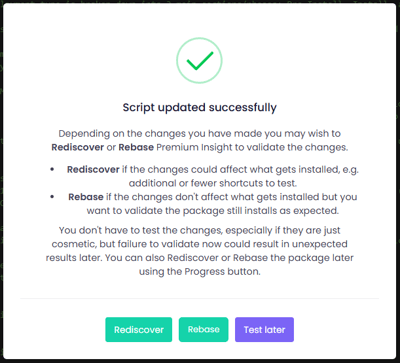
You have the following options:
-
-
Rediscover - select this option when:
- The changes are meant to address a previous failed discovery attempt.
- The updated script meaningfully changes how the package installs—for example, it adds or removes features—so the set of installed resources is different. This means new resources may now be available for discovery and testing, or resources that were previously detected may no longer be present.
- Rebase - select this option when:
- The updated script does not meaningfully change what resources are installed.
- Discovery previously completed successfully and the changes are meant to address a failed baseline or target/AVD OS test.
- Test later - select this option if you prefer not to retest the script immediately. Keep in mind that the next time you test the package, you may encounter unexpected behavior—for example, if the updated script installs fewer resources and the Smoke Test attempts to launch a shortcut that no longer exists.
-